If you’re using Replit for coding, app development, or AI-powered projects, you might have subscribed to one of its paid plans like Replit Core or Teams. However, if you no longer need the premium features or want to avoid recurring charges, canceling your Replit subscription is the right move.
In this guide, we’ll explain how to cancel your Replit subscription plan step by step, what happens after cancellation, and important things you should know before unsubscribing.
What Is Replit Subscription?
Replit offers paid plans that provide additional features such as:
- Faster compute power
- Always-on repls
- Private projects
- AI coding assistance
- Team collaboration features
These plans are billed monthly or yearly and auto-renew unless you cancel them manually.
Things to Know Before Cancelling Replit Subscription
Before you cancel your Replit plan, keep these points in mind:
- Cancellation stops future billing, not immediate access
- You can use premium features until the end of your billing cycle
- No refund is usually provided for unused time
- Your projects will remain, but some premium features may be restricted
How to Cancel Replit Subscription (Step-by-Step)
Follow these simple steps to cancel your Replit subscription:
Step 1: Log in to Your Replit Account
Visit the official Replit website and sign in using your registered email or GitHub account.
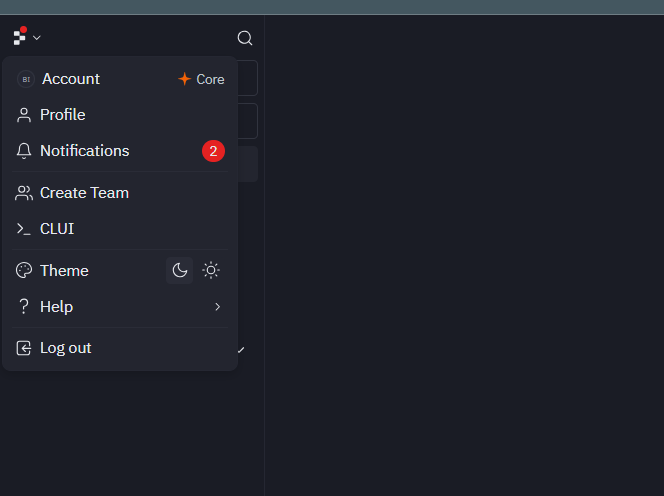
Step 2: Go to Account Settings
- Click on your profile icon at the top-right corner
- Select “Account” from the dropdown menu
Step 3: Open the Billing Section
Inside Settings:
- Click on “Billing” or “Subscription”
- You’ll see your active subscription plan details
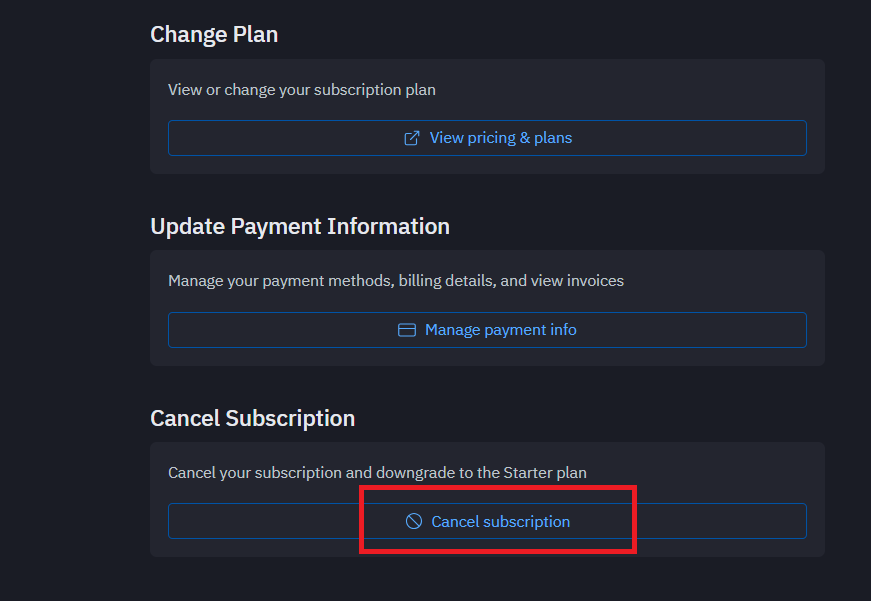
Step 4: Cancel Your Subscription
- Click on “Manage Subscription”
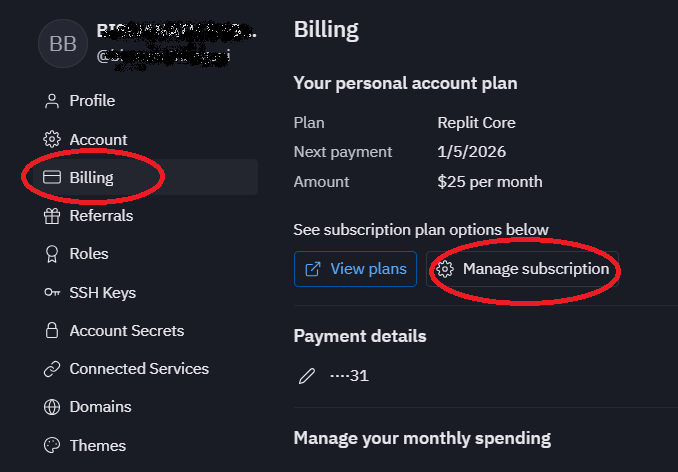
- Then Click on Cancel Subscription.
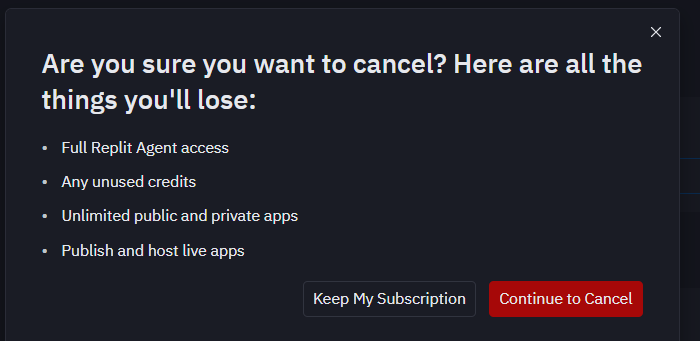
- After that shown a confirmation message.
- After that shown a confirmation message: Are you sure you want to cancel? Here are all the things you’ll lose:
- •Full Replit Agent access
- •Any unused credits
- •Unlimited public and private apps
- •Publish and host live apps
Clikc on Continue to Cancel
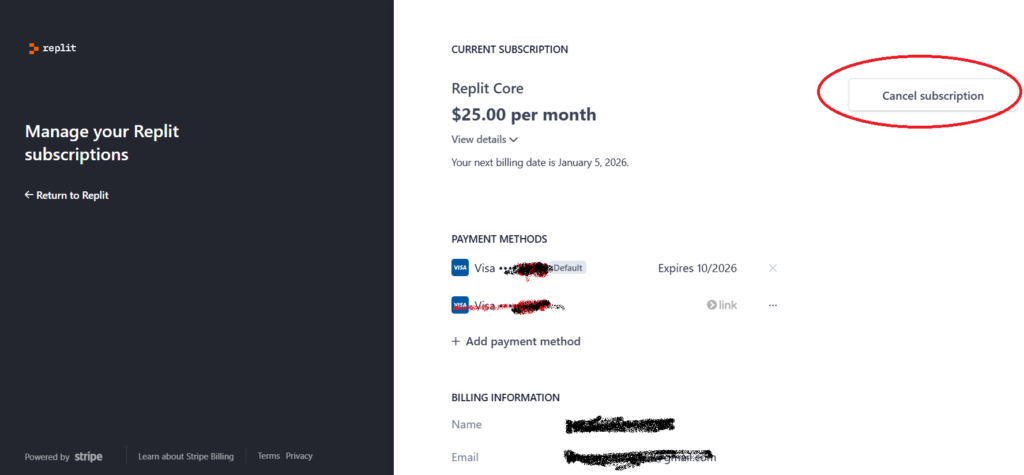
- Then showing you all details containing billing information.
- You need to click on Cancel Subscription.
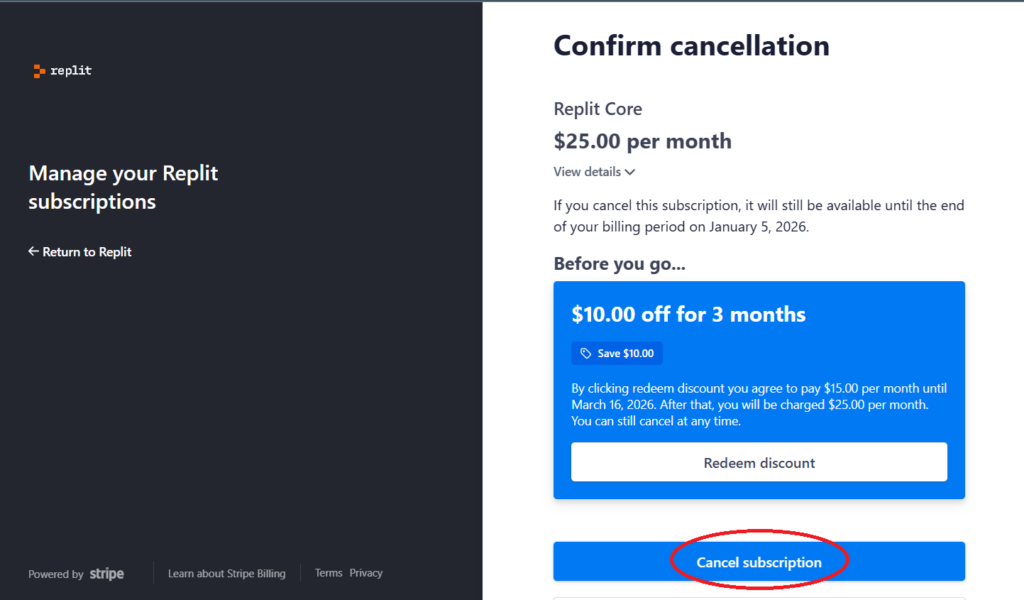
- Need confirmation for cancellation.
- Now it’s successfully cancelled.
How to Cancel Replit Subscription on Mobile
Replit subscriptions are managed through the web dashboard, even if you use Replit on mobile.
Simply open your mobile browser, log in, and follow the same steps mentioned above.
What Happens After Cancellation?
After canceling your Replit subscription:
- Your account switches to the free plan after the billing period ends
- Private repls may become public (check settings carefully)
- AI and high-performance features may be disabled
- Your existing code and projects remain safe
Why Users Cancel Replit Subscription
Some common reasons include:
- High monthly cost
- Not using premium features regularly
- Switching to other development platforms
- Completing a short-term project
Canceling doesn’t mean you can’t resubscribe later. You can upgrade again anytime.
How to Avoid Accidental Charges in the Future
To avoid unexpected billing:
- Cancel at least 1–2 days before renewal
- Check billing email notifications from Replit
- Use calendar reminders for subscription renewals
Replit Subscription Cancellation Not Working?
If you face issues while canceling:
- Clear browser cache and retry
- Try a different browser
- Contact Replit Support from the Help section
- Check if your plan was purchased through a third-party platform
Final Thoughts
Canceling a Replit subscription is quick and easy if you follow the correct steps. Whether you’re cutting costs or simply no longer need premium features, managing your subscription responsibly helps avoid unwanted charges.
For more tech tutorials, app guides, and subscription help articles, stay connected with Trendepost.com 🚀
Frequently Asked Questions (FAQs)
Q1. Can I get a refund after canceling Replit subscription?
No, Replit usually does not offer refunds for unused time.
Q2. Will my projects be deleted after cancellation?
No, your projects remain safe, but premium features may be limited.
Q3. Can I re-subscribe later?
Yes, you can upgrade again anytime from your account settings.